Usage Instructions for Downloading Data from VAERS using SurVigilance#
[1]:
## Instantiating the Application

# uncomment the below code to instantiate the application on a local machine
"""
from SurVigilance.ui import UI
UI().run()
""";
The above code will display the landing page of the dashboard application as shown below.
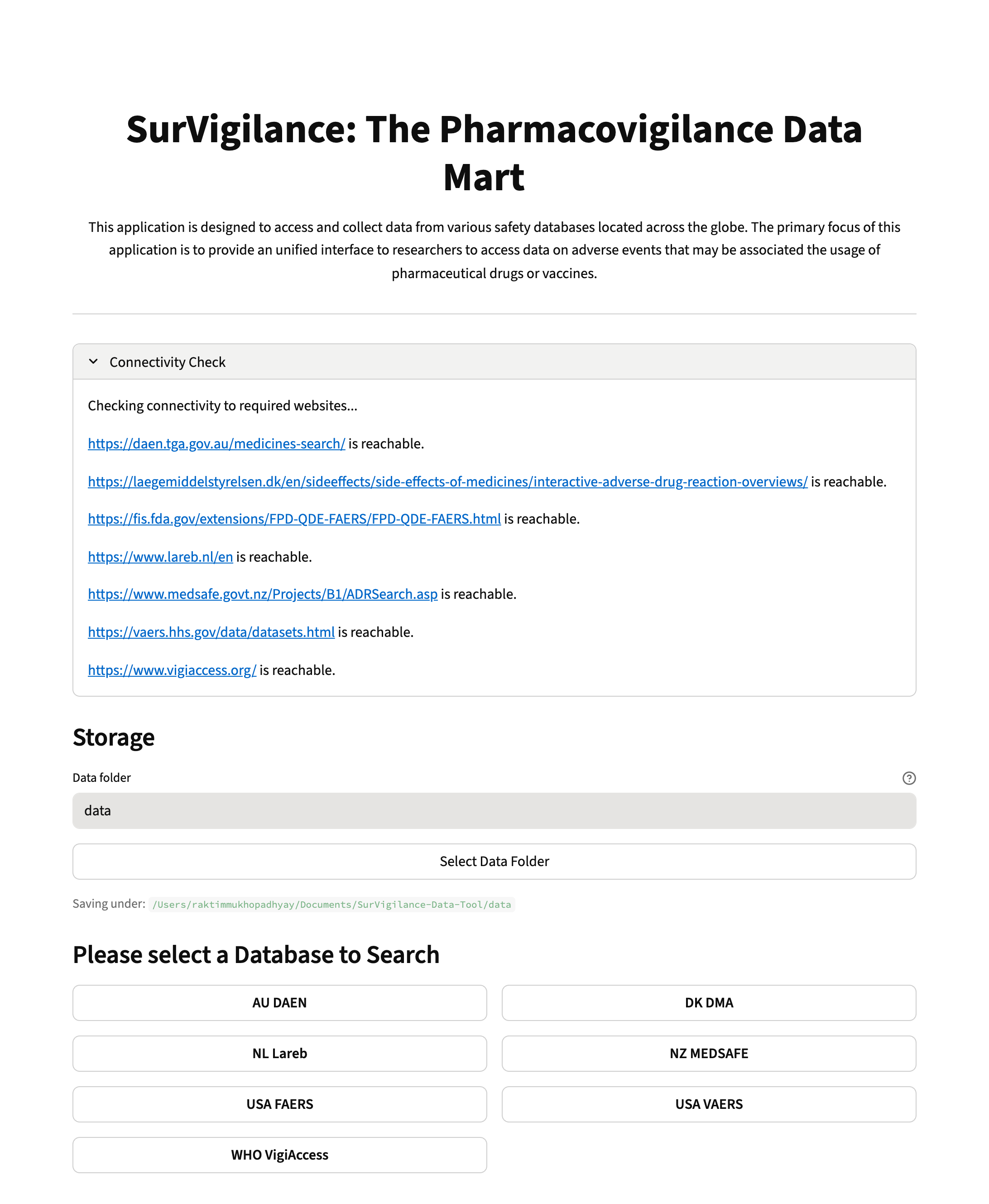
On the landing page, once the user clicks on the “VAERS” page, the page shown below opens.
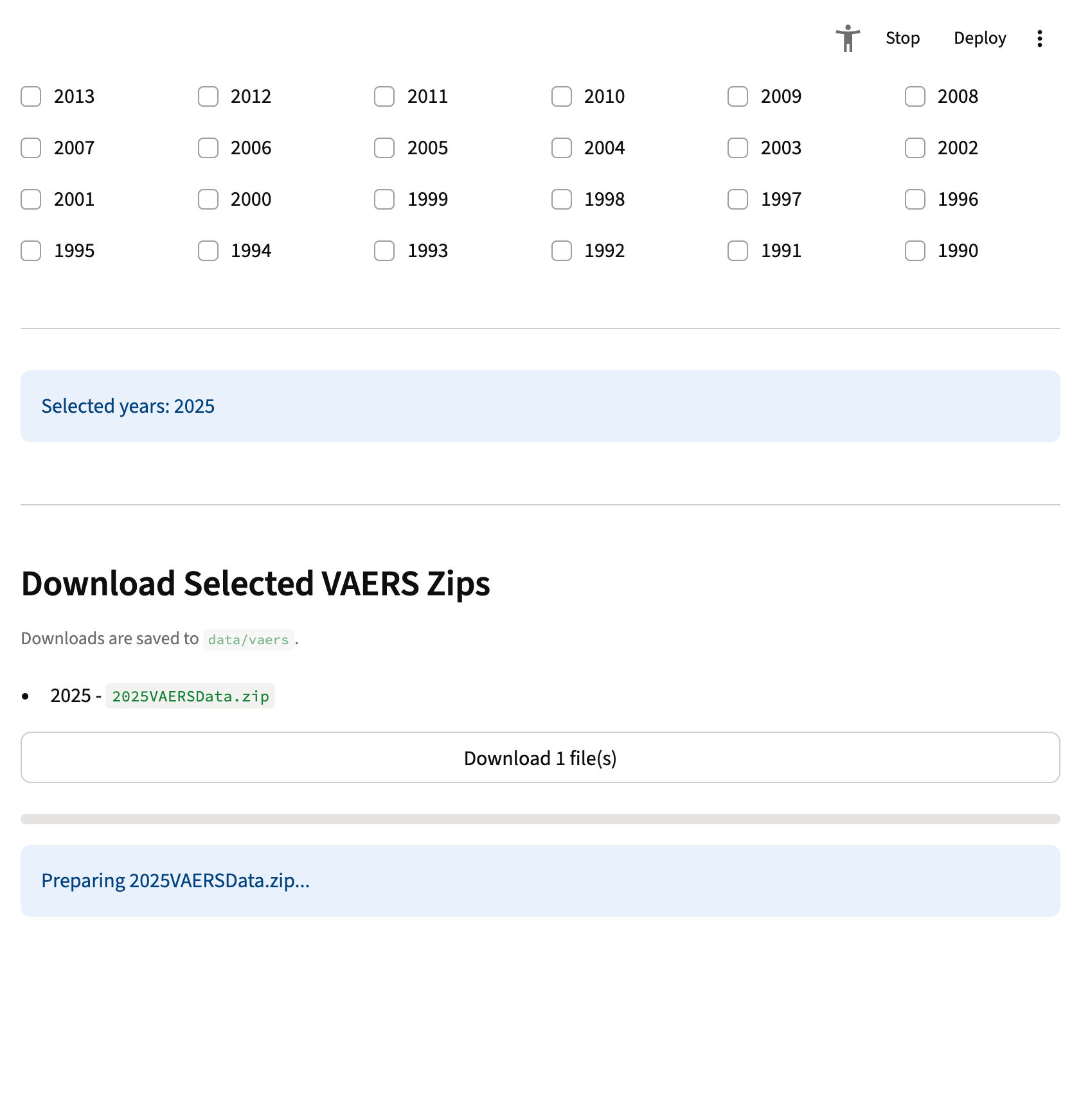
On the VAERS page, years for which data can be downloaded is shown. 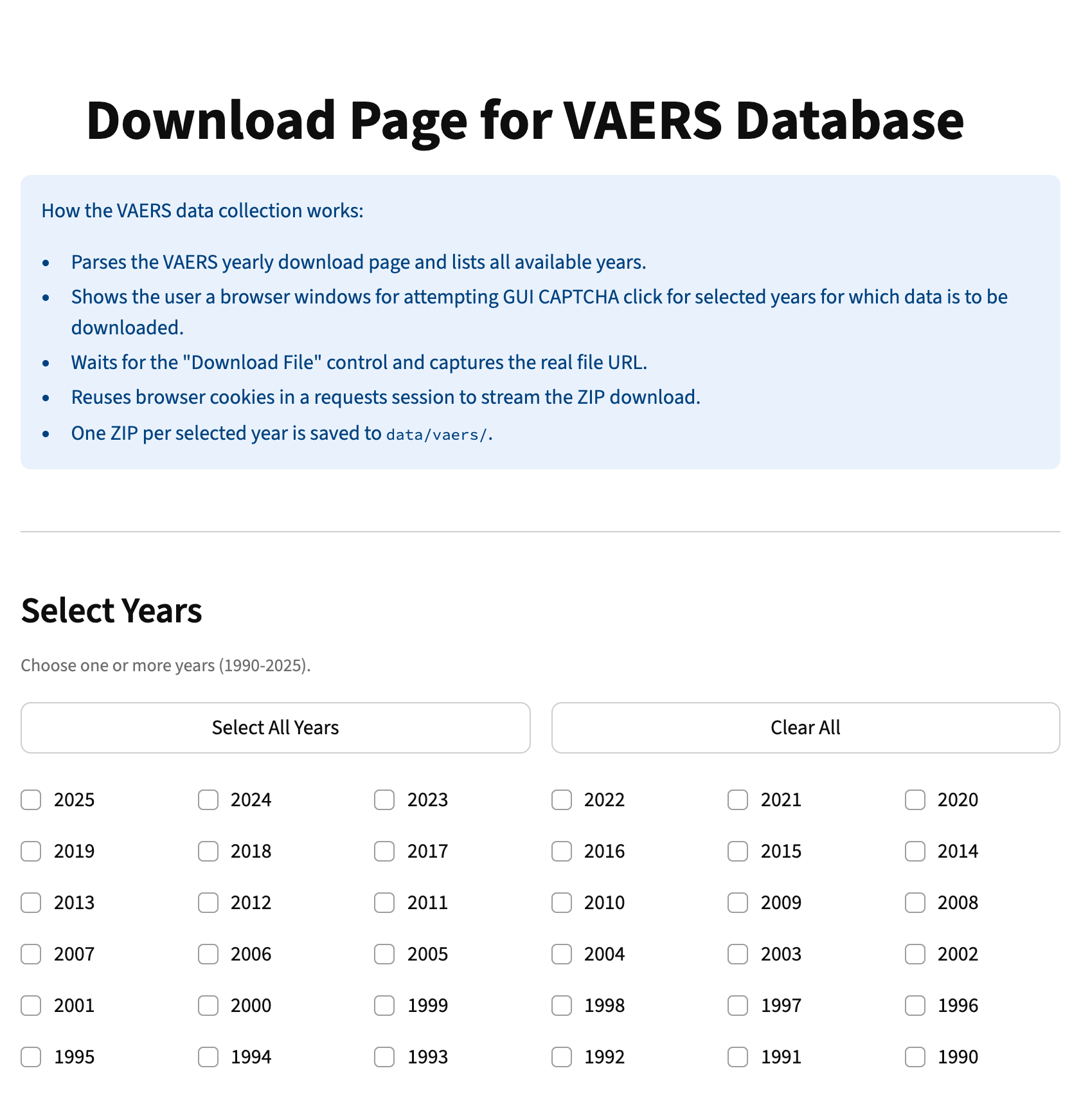
We select the year 2025, and the application then shows the download button to download the data.
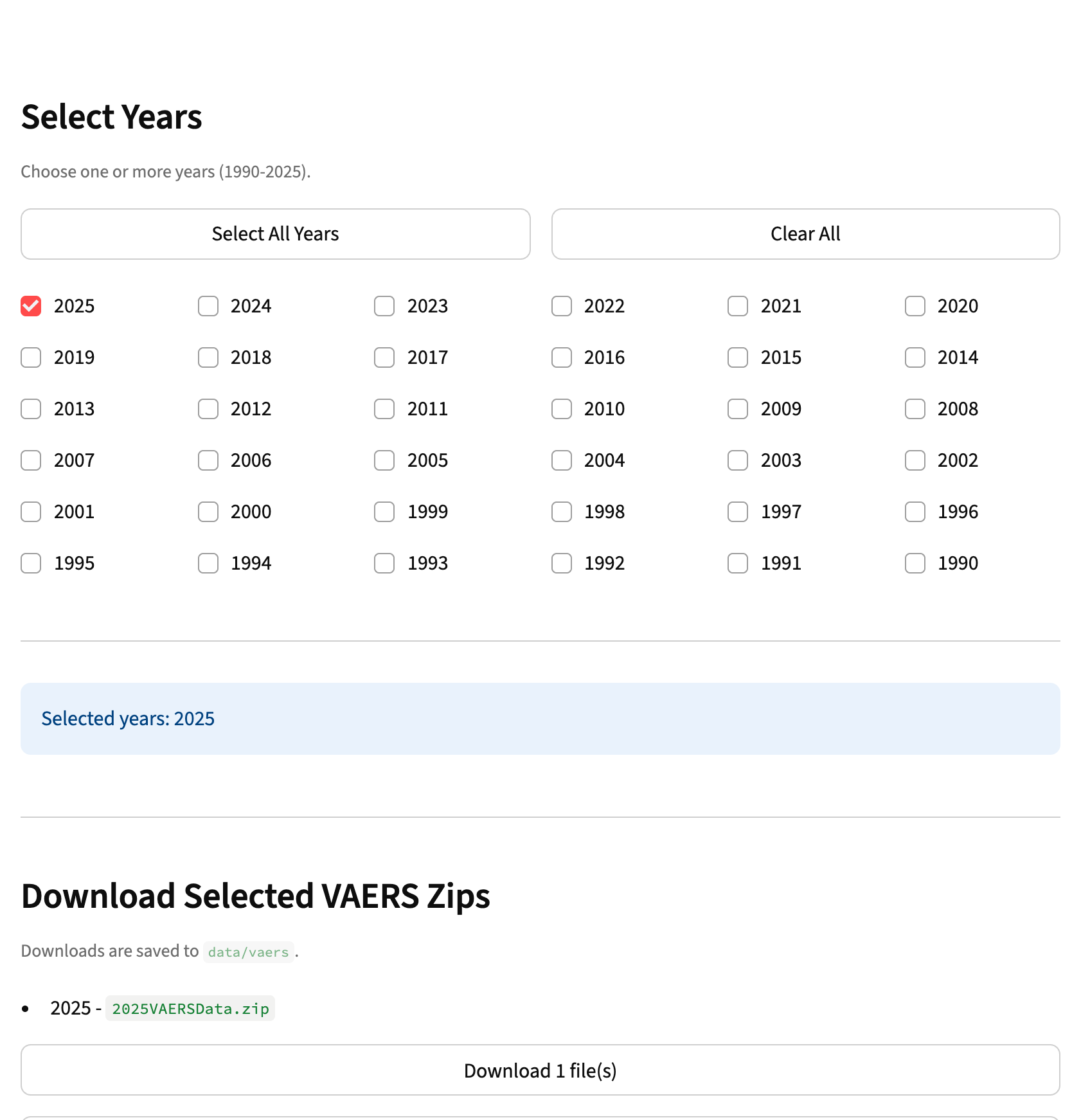
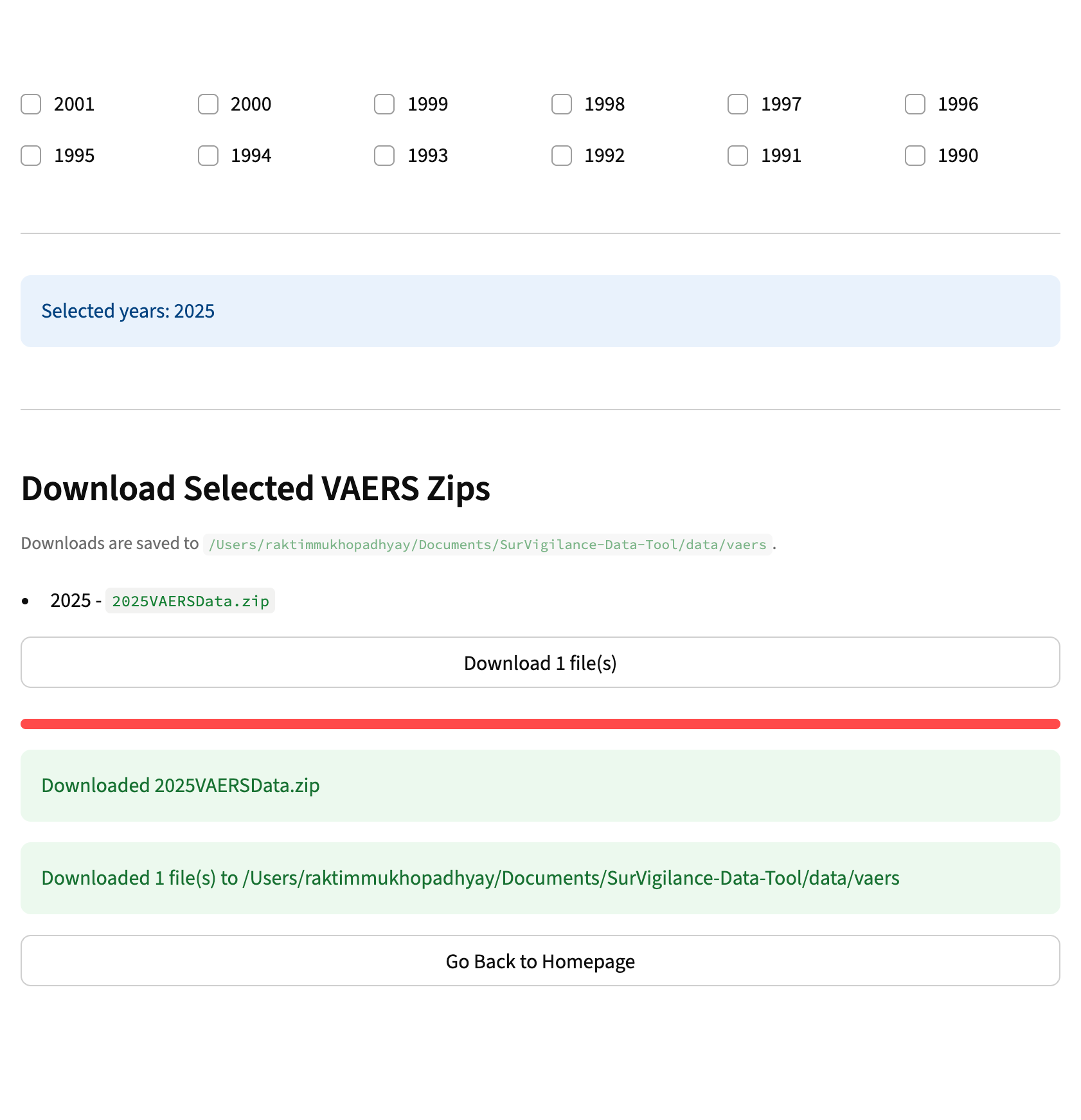
Once the user clicks on the Download button, download process begins.
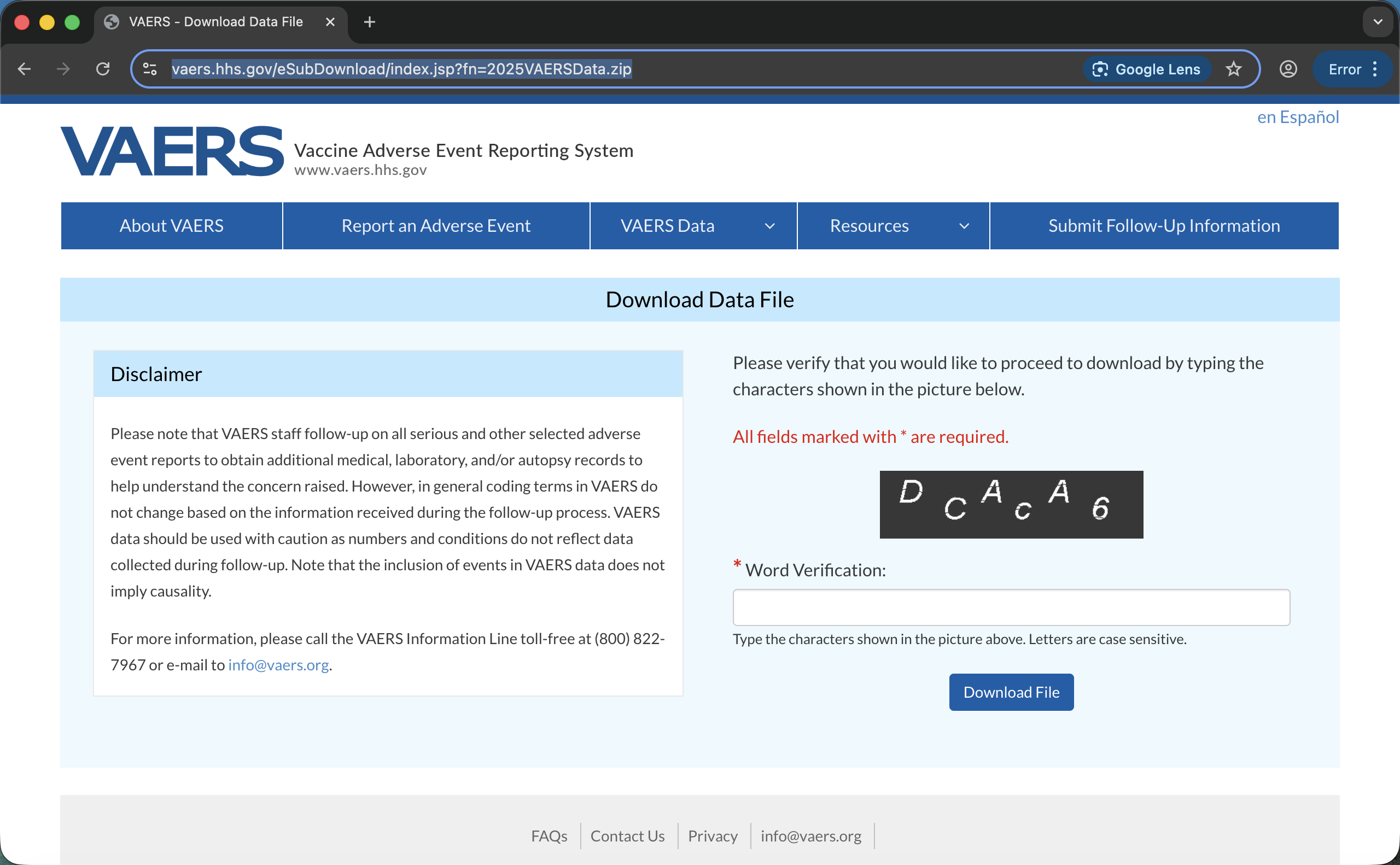
A new window then opens up where the user needds to input the CAPTCHA so that the requested data can be downloaded. The user needs to manually type the shown CAPTCHa into the input text box and click on the “Download File” button shown on the page.
Once the data is downloaded, success message is shown to the user alongwith the location where the data is stored.